Migrating from YITH WooCommerce Wishlist
A complete, honest walkthrough of moving your customers' wishlists into Wishmio: one click, nothing destroyed, safe to re-run, fully reversible until the moment you choose to deactivate the old plugin.
Prerequisites
- WooCommerce 8.0+ and the YITH wishlist data still present in your database (the plugin itself can stay active — the import doesn't touch or change its data).
- Wishmio free installed and activated. No settings needed — the importer is built in.
- Recommended for any data operation: a current site backup. The import only writes to Wishmio's own tables and only reads YITH's, but you should never run a migration without a backup you'd actually restore.
Step by step
- Open the importer. Go to WooCommerce → Wishmio Import. Wishmio scans for known wishlist data and shows what it found — no configuration, no field mapping.
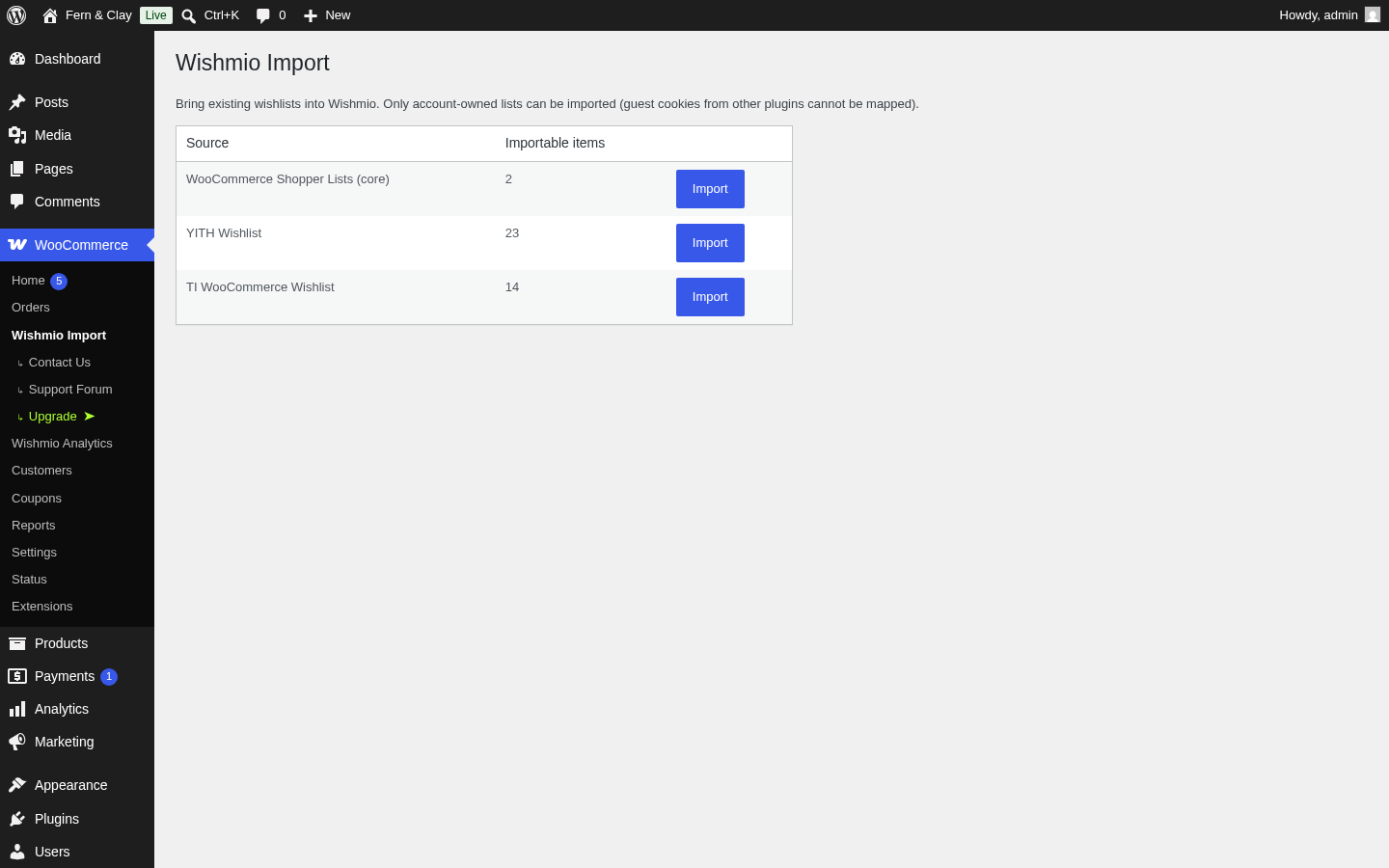
- Click Import next to YITH Wishlist. The import runs in one request and reports exactly what it did.
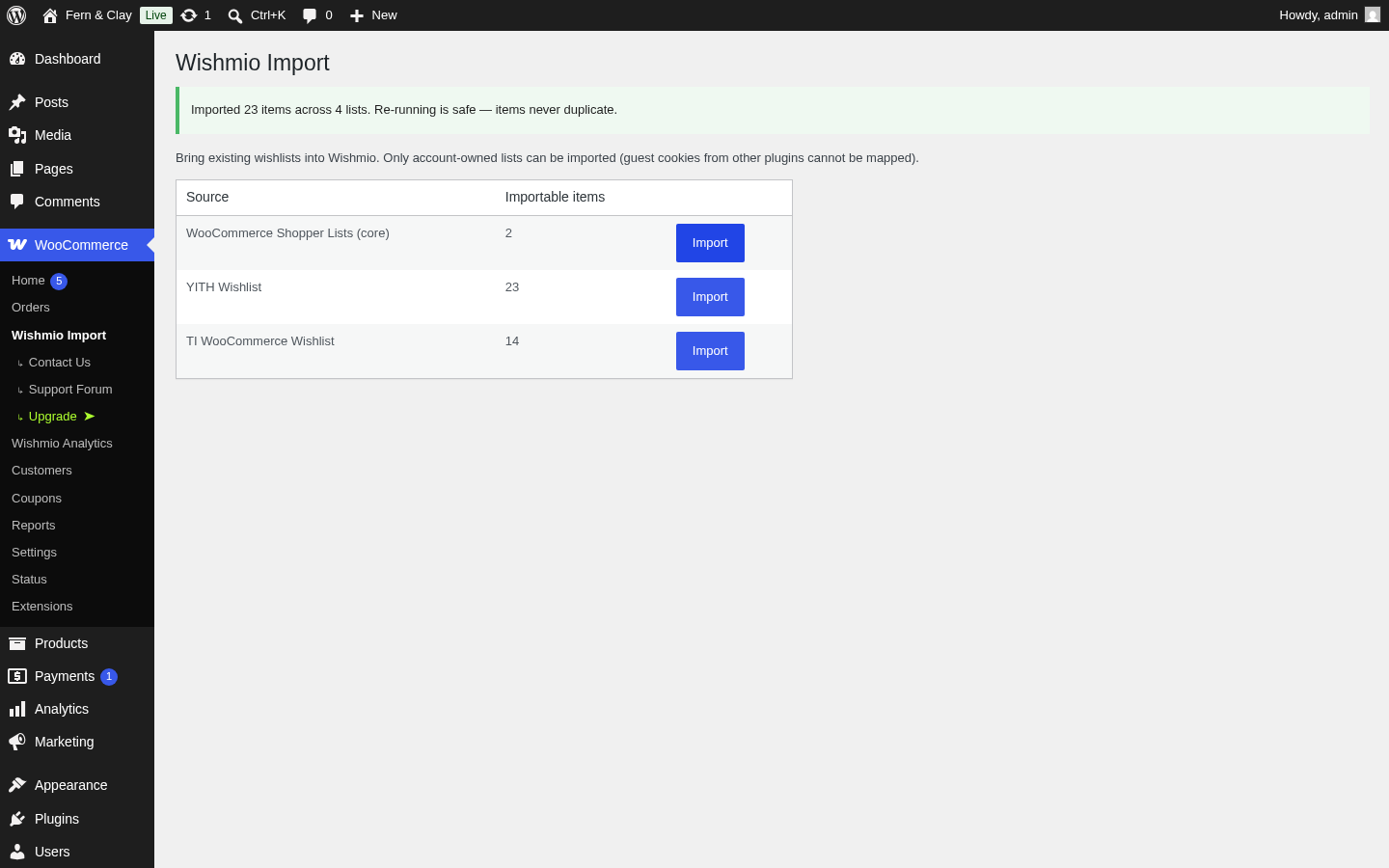
- Verify (checklist below), then deactivate the YITH plugin whenever you're satisfied. Nothing forces the timing — both plugins can coexist during the transition.
What carries over
- Account-owned wishlists — all of them. Every wishlist tied to a registered customer imports, including named multi-lists, which keep their names. The default YITH list becomes the customer's default Wishmio wishlist.
- Variation selections. If a customer wishlisted a specific variation, Wishmio resolves and stores it as parent product + variation, so the wishlist still points at exactly what they chose.
- Quantities. Preserved per item.
- Products that no longer exist are skipped — the importer verifies each product before importing rather than filling lists with dead entries.
What can't carry over — guest wishlists. Anonymous guest lists live against the old plugin's own browser cookie, which no importer can map to a person. Those shoppers start fresh — and under Wishmio they get a full guest wishlist without an account, which merges automatically if they ever register.
What to check after
- The success notice's item count is in the ballpark of what the detection row showed (deleted products account for small differences).
- Log in as (or view) one real customer and open the wishlist page — their saved products and any named lists should be there.
- The wishlist button renders on a product page in your theme (block and classic both supported).
- If shoppers added more items to the old plugin between import and switchover: just run the import again — it's idempotent, existing items never duplicate.
Rollback
The import is copy-only: it writes into Wishmio's own tables and never modifies or deletes the source plugin's data. To roll back at any point, deactivate Wishmio — your previous wishlist setup continues exactly as before. Uninstalling Wishmio removes its tables completely (clean uninstall), leaving no residue.
Switch in an afternoon
The free plugin includes the importer, guest wishlists, sharing, and multiple lists — no trial, no feature timer.